

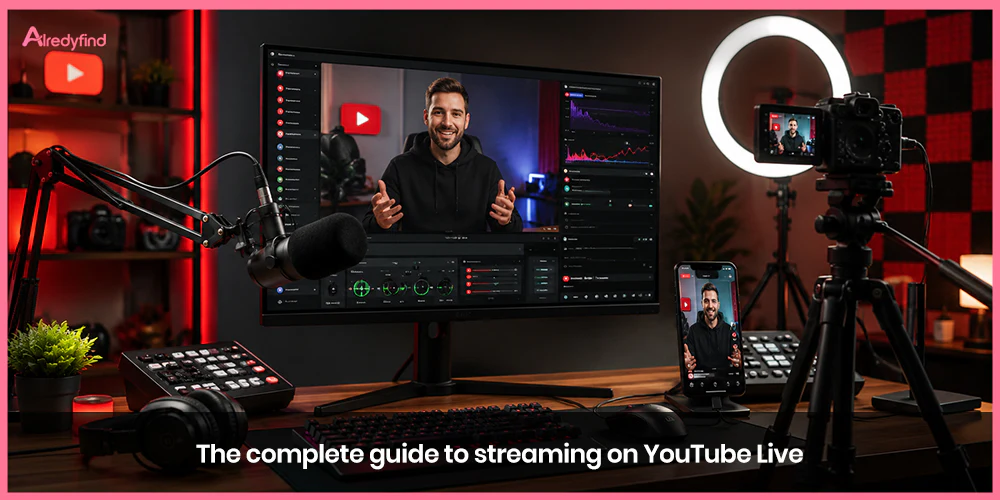
YouTube Live has evolved into one of the most powerful ways to build a real-time connection with an audience. Whether you’re a gamer, educator, musician, commentator, or someone who simply wants to hang out with viewers, going live turns passive subscribers into an active community. More than 30% of logged-in viewers watch live content daily, and features like vertical live streams, dual horizontal/vertical broadcasting, Live rings, Super Chat, memberships, and AI-powered chat tools have made the platform more creator-friendly than ever.
This guide walks you through everything you need: eligibility, setup options, technical recommendations, engagement tactics, monetization, and best practices drawn from official YouTube resources and proven creator strategies. The goal is practical, up-to-date advice that works whether you’re starting from zero or leveling up an existing channel.
Getting Eligible and Enabled for YouTube Live
Before you can hit “Go Live,” you must meet YouTube’s requirements.
You need to be at least 16 years old. Channels with live-streaming restrictions in the past 90 days are blocked. You must also verify your channel with a phone number (this can take up to 24 hours).
Desktop/webcam/encoder streaming has no subscriber minimum. Mobile streaming requires at least 50 subscribers (and additional safeguards apply until you reach higher thresholds). For users aged 13–17 the mobile threshold is higher in some contexts, and default privacy settings differ.
To enable live streaming:
Go to YouTube Studio or open the YouTube app.
Verify your phone number if you haven’t already.
Attempt to create a live stream or check the live streaming settings. YouTube may place a short waiting period (often up to 24 hours) before your first stream is allowed.
Once enabled, you can schedule streams in advance, which is strongly recommended for building anticipation and giving notifications time to reach subscribers.
Ways to Go Live on YouTube
YouTube supports several methods so you can match the tool to the content.
Mobile (YouTube app) Ideal for beginners, vlogs, Q&As, behind-the-scenes, or spontaneous moments. Vertical live streams appear in the Shorts feed and offer a full-screen mobile experience with scrollable discovery, Super Chat, stickers, memberships, and gifts (where available). You can also invite guests, run Playables (mini-games), and save automatic Short highlights after the stream.
Webcam via YouTube Studio Quick and simple from a computer. Good for talking-head content, tutorials, or low-production hangs.
Software or hardware encoders The most flexible option for gaming, multi-camera setups, overlays, scenes, and higher production value. Popular free tools include OBS Studio (highly customizable and lightweight) and Streamlabs Desktop (more beginner-friendly with built-in alerts, overlays, and widgets). Browser-based options and hardware encoders exist for professional events.
Game consoles PlayStation, Xbox, and Nintendo Switch support direct streaming (check each platform’s current instructions).
Dual streaming (horizontal + vertical) You can broadcast both formats at the same time from YouTube Studio. Horizontal serves desktop and traditional viewers; vertical serves mobile and Shorts. The same chat appears in both, and metrics are combined. This is one of the strongest recent features for reach.
Technical Setup: Network, Equipment, and Settings
A solid technical foundation prevents the most common stream-killers: dropped frames, lag, and poor audio.
Internet Upload speed is what matters. Leave at least 20% headroom above your target bitrate. Run a speed test and prefer a wired Ethernet connection over Wi-Fi when possible. Shared networks or unstable connections cause interruptions.
Recommended bitrates and resolutions (H.264 guidelines from YouTube) Approximate targets:
720p30: ~4 Mbps
720p60: ~6 Mbps
1080p30: ~10 Mbps
1080p60: ~12 Mbps
Higher resolutions (1440p/4K) require significantly more bandwidth and are best reserved for strong connections and capable hardware.
Use constant bitrate (CBR) for live streams. Test thoroughly with a private or unlisted stream first.
Equipment basics
Camera: Phone cameras are excellent starters; dedicated webcams or DSLRs/mirrorless cameras improve quality.
Microphone: Built-in mics are rarely good enough. A USB mic or headset with a clear mic makes a dramatic difference.
Lighting: Even simple soft lighting or a ring light improves clarity and professionalism.
Software: OBS or Streamlabs for scenes, transitions, alerts, and multi-source layouts.
Set up encoders at least a couple of hours before a scheduled stream and start them 15 minutes early. Always preview in the Live Control Room before going public.
Planning and Promoting Your Stream
Successful streams rarely happen by accident.
Decide on a clear format: Q&A, gameplay with commentary, tutorial, performance, watch-along, or community hangout. Prepare talking points, overlays, lower-thirds, or guest links in advance. Set an end time and stick close to it when possible.
Promote early. Use Community posts, Shorts, previous video end screens, social media, and email lists. Create an eye-catching thumbnail and title that works like a regular video. Enable notifications so subscribers who tap “Notify me” get alerts. Live rings around your channel icon also drive discovery while you’re live.
Schedule streams in YouTube Studio so they appear on your channel’s Live tab and can be promoted ahead of time.
Engaging Viewers and Building Community
Live streaming’s biggest advantage is real-time interaction.
Use Live Chat actively—greet people by name, answer questions, run polls, and use Q&A stickers (including AI-suggested prompts on mobile). Moderate proactively or assign trusted moderators so you can stay focused on content. Tools exist to manage chat, hide users, and keep the conversation positive.
Create rituals and inside jokes that make regulars feel at home. Acknowledge Super Chats, memberships, and gifts. After the stream, the archive becomes a regular video you can edit, clip into Shorts, or turn into longer content.
Members-only streams offer exclusivity for your most engaged fans and can encourage upgrades.
Monetization Opportunities
Once you’re in the YouTube Partner Program, live streams unlock multiple revenue streams:
Ad revenue (mid-rolls and pre-rolls on eligible horizontal streams)
Super Chat and Super Stickers
Channel memberships and gifted memberships
Shopping (where available)
Gifts in select markets
Vertical streams support many fan-funding features and discovery in Shorts, though some ad and feature differences exist compared with horizontal.
Focus first on consistent value and community; monetization follows engagement.
Best Practices and Common Pitfalls
Test everything before going public. Monitor audio and video quality throughout the stream. Have a backup plan for connectivity issues. Follow Community Guidelines strictly—violations can result in strikes that temporarily or permanently restrict live access.
Keep early streams simple. Production value matters less than authenticity and interaction when you’re starting. As you grow, layer in better lighting, multiple cameras, professional overlays, and production roles if needed.
After the stream, review analytics in the Live Control Room (and vertical-specific metrics after 24 hours). Note what resonated, chat volume peaks, and retention patterns. Turn strong moments into evergreen content.
FAQ
Desktop, webcam, and encoder streaming have no subscriber minimum once your channel is verified and eligible. Mobile streaming requires at least 50 subscribers. Additional audience limitations may apply until you reach higher thresholds (around 1,000 subscribers).
Verification and the first live attempt can take up to 24 hours. After that, you can usually go live more quickly, though YouTube recommends enabling and testing well in advance of important streams.
OBS Studio is the most popular free, open-source option and offers maximum control. Streamlabs Desktop is also free and more beginner-oriented with built-in overlays, alerts, and themes. Both work well with YouTube.
Yes. From the Live Control Room in YouTube Studio you can enable dual streaming. Viewers on desktop or traditional players see the horizontal version; mobile Shorts feed viewers see the vertical one. Chat is shared.
Eligible Partner Program channels can earn from ads, Super Chat/Super Stickers, channel memberships, gifted memberships, Shopping, and gifts (availability varies by region and stream format). Strong engagement and consistent streaming improve monetization results.

