

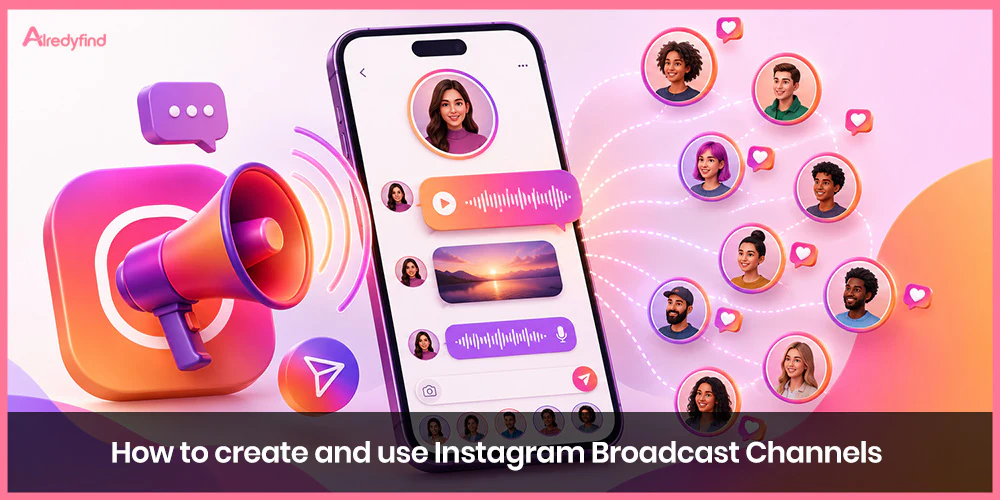
Instagram Broadcast Channels give creators and brands a direct line into their followers’ inboxes. Think of them as a one-to-many messaging space that lives inside Direct Messages: you post updates, photos, videos, voice notes, polls, and more, while members can react with emojis, vote, and (in some cases) reply in threads—but they can’t post their own free-form messages. The result feels more personal than a feed post and far more scalable than individual DMs.
Because messages land in the same inbox people already check constantly, Broadcast Channels help you cut through algorithmic noise. Followers who join receive notifications for new updates (unless they mute the channel), creating a reliable way to share exclusive or time-sensitive content with your most engaged audience.
What Are Instagram Broadcast Channels?
An Instagram Broadcast Channel is a public, opt-in messaging feature available primarily through the mobile app. Only the channel creator (and any invited collaborators or admins) can publish content. Members join to receive updates and interact in limited ways. Channels can appear in the Channels tab of the inbox, and creators can pin them to their profile for easy discovery.
Key characteristics include:
One-way broadcasting with interactive elements (reactions, polls, optional nested replies).
Support for text, images, short videos, voice notes, GIFs, links, and polls.
The ability to create multiple channels for different topics or audience segments.
Options for public discoverability while typically limiting joining to followers (or paid subscribers in some cases).
Insights so you can see what resonates.
Instagram has expanded availability over time. Official guidance notes that channels can be started by a public account with more than 1,000 followers, and the feature continues to roll out more widely. Professional accounts (Creator or Business) are the standard for full functionality, including branded content tools.
Who Can Create a Broadcast Channel?
Eligibility has evolved. According to Instagram’s Help Center, channels can be created by public accounts with more than 1,000 followers. Many guides note that a Professional account (Creator or Business) is required or strongly preferred, and the account should be in good standing with no recent community guideline restrictions. Availability can still vary by region, and the feature is not yet universal. Personal accounts generally need to switch to a professional type first.
If the “Create channel” option does not appear, update the app, confirm your account type and follower count, and check that the feature has rolled out in your location.
How to Create an Instagram Broadcast Channel
The process is straightforward and takes only a few minutes once you’re eligible:
Open the Instagram app and go to Messages (the paper-airplane icon).
Tap the Compose or pencil icon in the top right.
Select Create channel (or “Create broadcast channel”).
Customize the details:
Enter a clear, descriptive channel name that signals the value (avoid generic labels like “Updates”).
Choose the audience (typically your followers; options may include broader or subscriber-only settings).
Decide whether the channel has an end date or runs indefinitely.
Toggle whether to show the channel on your profile for easier discovery.
Tap Create.
Your first message triggers a one-time notification inviting your followers to join. Only those who opt in will receive future updates. You can find and manage your channels by tapping Messages, then Channels at the top.
You can also start a channel from certain create or profile flows in some versions of the app.
How to Invite People and Grow Your Channel
Once the channel exists, growth becomes the priority:
The first message automatically notifies followers.
Share an invite link (you can reset it anytime for a new one).
Add the channel to your Stories using the join sticker or by sharing a specific message.
Pin the channel to your profile so visitors see it prominently.
Generate and share a QR code from the channel settings.
Mention it in Reels, captions, or other content and explain the exclusive value people will receive.
Make joining feel rewarding. Tell followers exactly what they can expect—early product access, behind-the-scenes moments, polls that influence decisions, or voice-note updates they won’t see elsewhere.
How to Use Broadcast Channels Effectively
Treat the channel like a VIP space rather than another place to dump your regular feed content. Best practices that consistently perform well include:
Lead with value and exclusivity. Share sneak peeks, early announcements, limited offers, or candid behind-the-scenes content first (or only) in the channel.
Mix formats. Alternate text updates, photos, short videos, voice notes, GIFs, and polls. Voice notes add a particularly personal, human touch.
Post consistently but thoughtfully. A few times a week often works better than daily spam. Quality and relevance matter more than volume because every message can trigger a notification.
Use interactive tools. Polls and question prompts help you gather feedback, crowdsource ideas, and keep members engaged. Some accounts enable nested replies for deeper conversation without cluttering the main feed of the channel.
Create multiple channels when it makes sense. One for product drops, another for community chat or a specific topic, keeps content relevant and reduces mute rates.
Collaborate. Invite other creators as collaborators so they can post and help moderate. This can introduce your channel to new audiences.
Monitor insights. Pay attention to what content drives reactions and joins so you can refine your approach.
Respect the inbox. Members can leave or mute easily. Avoid over-posting or purely promotional messages that feel like spam.
Popular use cases include product launches and limited drops, event updates, exclusive merch or subscriber content, real-time behind-the-scenes during travels or shoots, and running informal polls to shape future content or products.
Benefits for Creators and Brands
Broadcast Channels deliver near-direct reach to opted-in members, helping overcome feed algorithm limitations. They foster stronger community feelings, support advocacy and word-of-mouth, and provide a lower-pressure environment for authentic sharing. Many creators report higher engagement rates with this highly qualified segment of their audience compared with the main feed. For businesses, they serve as an effective channel for announcements, feedback loops, and driving traffic to offers or content without relying solely on Stories or the algorithm.
Common Challenges and Tips
If the create option is missing, confirm eligibility, update the app, and switch to a professional public account if needed. Members who cannot join may need to update their app or troubleshoot device/cache issues. For branded or paid-partnership content shared in a channel, use Instagram’s paid partnership tools as required.
Keep the tone conversational and friendly—these messages live in a DM-like space. Set clear expectations in a welcome message so new joiners understand the cadence and type of content.
FAQ
Public accounts with more than 1,000 followers can create channels. A professional (Creator or Business) account is typically required or preferred for full features, and the account should be in good standing. Availability continues to expand by region.
Only the creator and designated collaborators can post original messages. Members can react with emojis, vote in polls, and (when enabled by the creator) leave nested replies under specific messages. This keeps the channel focused and organized.
Followers receive a one-time invitation notification when the creator sends the first message. They can also join via a profile pin, Story sticker, invite link, QR code, or by discovering the public channel. Joining is opt-in.
Yes. Many creators run multiple channels to segment audiences or topics (for example, one for general updates and another for exclusive subscriber content or a specific interest area). Insights help you understand performance across them.
The full experience—creating, managing, posting, and joining—is designed for the Instagram mobile app on iOS and Android. Desktop and web access is limited or unavailable for most channel functions.

 reply in threads—but they can’t post their own free-form messages. The result feels more personal than a feed post and far more scalable than individual DMs.)